How to install a modpack on your Minecraft server
After 'how do my friends join,' this is the most-repeated setup question on every host, even right after people pay for one. Here's how modpacks actually work, server-side vs client-side, and the fast way to run one.
"I just got a server but I don't know how to put a modpack on it" is one of the most common things people ask, on free and paid hosts alike. The confusing part isn't the download: it's that a modpack is really two halves: the part that runs on your server, and the part every player installs on their own computer.
Get that split right and everyone's in. Get it wrong and you get a silent boot crash or friends who can't connect. Here's the whole thing, plus the one-click route for when you don't want to touch files at all.
In this guide
1Pick a modpack and note its loader and version
Modpacks live in two big catalogs: CurseForge and Modrinth. Named packs like All The Mods 11 or RLCraft are common starting points, but any pack works the same way.
Write down three things off the pack's page: the mod loader (usually Fabric, Forge, or NeoForge), the Minecraft version, and the RAM the pack itself recommends. The first two have to match on your server and on every friend's game or the connection fails before it starts. The third is the number that decides what size server you need. A pack's own figure beats any general rule of thumb, including the one on our RAM guide.
The catch
Pick a version of the pack and stay on it. Most packs update far faster than a friend group does, and "my launcher auto-updated the pack" is the second-most-common reason someone who was in yesterday can't get in today.
2Understand server-side vs client-side mods
Every mod runs in one of three places: on your server, on each player's own game, or on both. World generation, custom mobs, and new recipes are server-side. A minimap, a shader, or a UI tweak is client-side: it only changes that player's screen, and installing it on the server does nothing.
That split is why a modpack download is usually two different files: a server pack and a client pack. If you only ever grab the client one and upload it whole, you're putting client mods on the server, which is where the classic silent boot crash comes from.
The catch
"Does nothing" is the good outcome. A client-only mod in the server's mods folder often crashes the boot instead, and the crash names a class you've never heard of rather than the mod that caused it, which is why this is worth getting right before you start rather than after.
3Install the pack on the server
The manual route: install the matching loader on the server, upload the pack's server-side mods into the mods folder, and restart. Fiddly, but it's just matching versions.
The one-click route on Voxi: pick the modpack straight from the CurseForge or Modrinth catalog and Voxi installs the matching loader and server-side mods for you. What that doesn't cover is a pack that isn't in either catalog: a hand-assembled mod list is still a file upload, here as anywhere else, and for that job any host with file access does the same thing we do.
The catch
Adding a pack on top of an existing world is the risky direction. Mods that change world generation only apply to chunks generated after they arrive, so your old terrain stays old, and removing a mod later can strip every block and item it added out of the world. Back the world up before the pack goes on, not after.
4Have your friends install the client side
For most packs your friends install the same loader and the pack's client files on their own computers, so their game matches the server. The loader and Minecraft version have to line up with the server exactly.
The least painful way is for everyone to install the pack through the same launcher (the CurseForge app, Modrinth's, or Prism), because that pins the loader and the version for them instead of leaving it to be typed in by hand. Send the pack name, the pack version, and the address in one message so nobody's guessing at any of the three.
On Voxi your world's mods list has a Client pack button: it builds the pack your friends install so their game matches your server, as one download you can send them. They still install it themselves, and it never reaches their computers on its own.
The catch
Nothing a host does can install the client half for your friends. One-click server installs are real, and they cover exactly half of this; the other half happens on five other computers you don't control. A client pack turns that half into one download instead of a mod list to match by hand; it does not make it happen without them.
5Start, watch the first boot, and fix mismatches
A modded first boot is much slower than vanilla: several minutes for a big pack, because every mod is generating its data on the way up. Give it that time before assuming it hung.
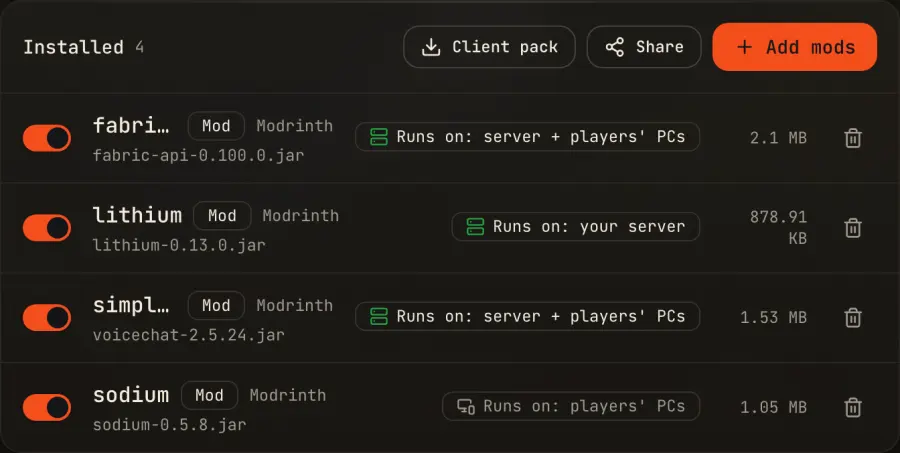
Two failures look identical from the group chat: a server that never finished booting, and a friend whose game doesn't match. Voxi tells you when the server actually stopped, rather than leaving you to work that out from complaints, and labels every mod by where it runs (your server, players' computers, or both), so a client-only mod reads as "won't do anything here" instead of silently taking the boot down.
The catch
If a big pack dies partway through its first boot with no obvious error, run out of memory before you go looking for a bad mod: an under-sized server is the more common cause, and the pack's recommended RAM figure is the fix.
FAQ
Do my friends need the mods too?
For most modpacks, yes: anything visual or client-side has to be installed on each player's computer, matching the server's loader and version. Purely server-side mods are the exception.
What's the difference between a server mod and a client mod?
A server-side mod runs on the server (world generation, mobs, recipes); a client-side mod runs on each player's game (minimaps, shaders). Some run on both. Installing a client-only mod on the server does nothing and can crash the boot.
Can I just move my existing modded world over?
On Voxi you can upload an existing world as a .zip and install a modpack alongside it, instead of rebuilding the world by hand. Back it up first: mods that change world generation only affect new chunks, and removing one later takes its blocks and items out of the world with it.
How much RAM does a modpack need?
Whatever the pack's own page says, which is usually 6 GB or more for a big one. That figure beats any general rule: a 200-mod pack and a 20-mod pack need very different servers for the same three players.
Read next: how much RAM does a Minecraft server need?.
Comparing hosts? See how Voxi compares to Aternos, Minehut, Exaroton and the paid hosts.
The server half, without matching versions by hand
Start a free server on Voxi, pick your pack from CurseForge or Modrinth, and the loader and server-side mods install themselves, every mod labeled by where it runs. Your friends still install the client half; no host can do that part for them.